Adding your party
Your whole party on one screen, and what to do when the numbers drift.
Adding a character
On the Players tab, press Add character. The only field you have to fill in is the name; press Add to the party and the card exists. Everything else is there for when you have the sheet open: AC and the three passive scores, who plays them, race, class and level (a multiclass is written with each class’s level, “Bard 5, Warlock 2”, and the card shows it as “Bard 5 / Warlock 2”; the total level can stay blank and is summed), subclass, the sheet URL (D&D Beyond is supported today), max HP and spell save DC, speed, size and senses, alignment and languages, defences as comma-separated chips (resistances, immunities, vulnerabilities, condition immunities and anything else), features and resources as free text, and the six ability scores, six saving throws and eighteen skills.
Saving throws work the way a stat block does. Enter the ability scores and mark which saves the character is proficient in, and the totals are derived from the score, level and proficiency bonus (a proficient save needs the level entered before it can be derived). Where the sheet disagrees — an Aura of Protection, a Cloak of Protection — type the sheet’s total and it wins. Each save can also carry a modifier that says when it has advantage or disadvantage and why: “CON · Advantage vs. poison · Dwarven Resilience”. Those show under the saving throws in the profile drawer, and in each save’s tooltip.
Skills work the same way. Mark each one half-proficient (Jack of All Trades, Remarkable Athlete), proficient or expertise and the bonus follows from the ability score and level; type the sheet’s total where it differs. A skill modifier records advantage or disadvantage on a check and where it comes from — “STLH · Advantage · Naturally Stealthy” — or “other” for a rule the source explains, like Stonecunning. In the drawer, ½ after a skill means half proficiency, one dot proficient, two expertise.
A stat you haven’t entered shows as a dash on the card rather than a zero, so a half-filled party still reads honestly. If a character has no online sheet, or your table uses paper, leave the URL blank. The card is identical either way; the only difference is that the Open D&D Beyond sheet button in the profile drawer stays greyed out.
What’s on a card
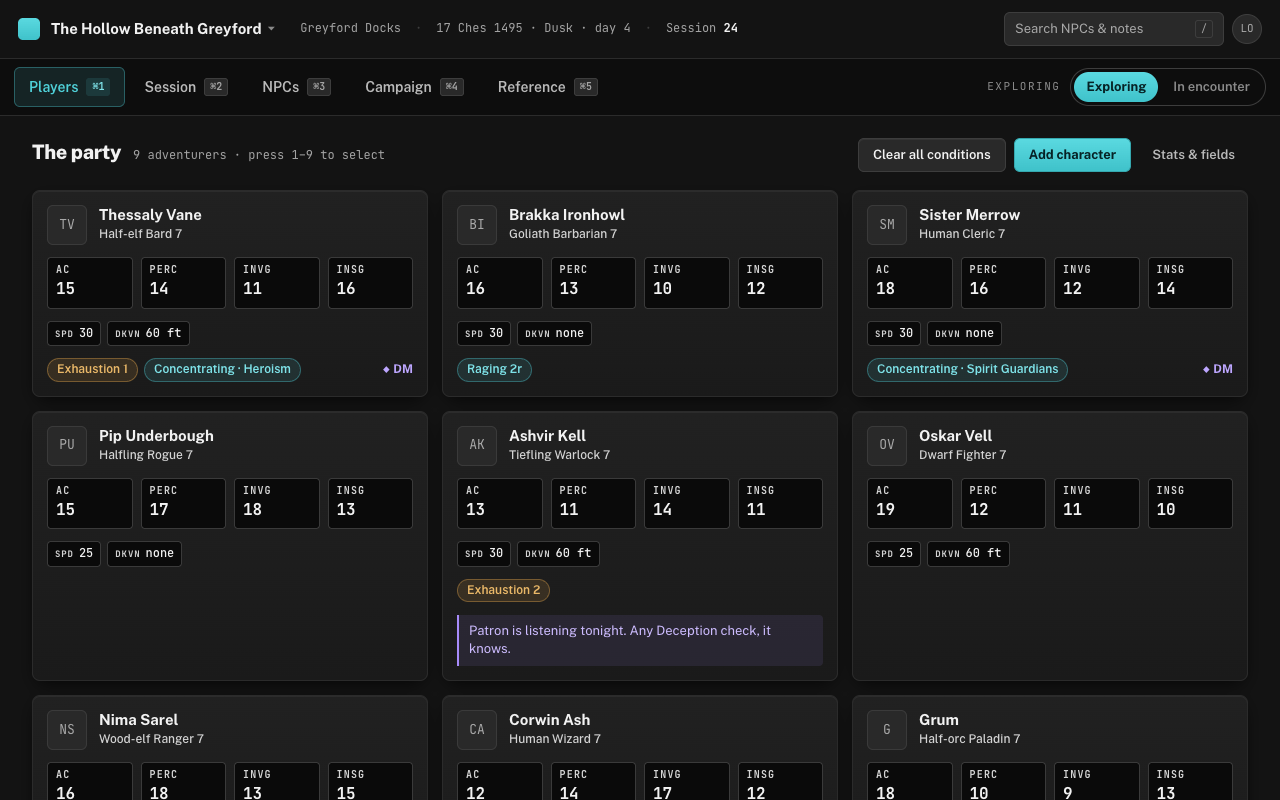
Each card holds the name and class line, then a row of stat wells — by default AC and passive Perception, Investigation and Insight, the numbers you’re asked for constantly and that nobody volunteers. Below them a compact mono row carries the smaller stuff (speed, darkvision), then the chip row for conditions and temporary effects, and a violet ◆ DM marker when you have private notes and none of them is shown in this view (if one is shown, its tooltip counts the rest). Which fields get a well, which sit on the compact row and which stay hidden is configurable per campaign — see Choosing which stats show.
Press 1–9 to select a card, then ⏎ to open its profile drawer — or just click the card. The drawer slides in beside the party rather than over it, so every card stays in view; click another card to switch the drawer to that character, and click the open card again, any blank space, or esc to close it. The drawer is the full reference, grouped in the order you reach for things: the snapshot numbers, movement and senses, any campaign fields with a value, ability scores with their modifiers and the saving throws laid out like a stat block, defences line by line, class resources as pips you can spend and restore (the form can’t add resources yet; the sample campaign shows how they look), the condition and effect editor, features and your private notes, then skills, languages and alignment. Edit and Remove sit at the bottom beside the sheet link — Remove deletes the character at once, with no confirmation and no undo.
Cards sit in the order you put them. Drag a card onto another to move it there; the arrangement is saved with the campaign and comes back next session, on any device. The app itself never reorders the grid, so the number keys stay reliable: a new character joins at the end.
Private notes
Open a player’s drawer and add a note in the violet DM-only section. Use it for the things you’re actively withholding — not a summary of their backstory, but the specific fact that will land at some point. “Her patron is the same voice Ashvir hears; she doesn’t know yet” is a good note. “Bard, likes music” is not.
Notes are individual entries, and each one carries its own display flags: show it on the card while exploring, while in an encounter, or neither. In the note field, ⏎ saves and ⇧⏎ adds a line. A new note shows in encounters by default and stays off the card while exploring. A note with no flags set still earns the ◆ marker whenever nothing else is shown on the card, so you know something is there without it taking space, and anything not shown on the card lives in the drawer. Deleting a note offers an Undo in the toast.
Encounter mode
Press E when a fight starts, or use the Exploring / In encounter switch at the right of the tab strip. The stat wells grow and take the accent colour, temporary effects move ahead of conditions with a dot on anything that needs concentration, portraits shrink and the class line drops away to make room, and any DM note you flagged for encounters appears in full.
What doesn’t happen: cards don’t reorder, resort or move. If Grum was bottom-left before the fight, he’s bottom-left during it. Mode is per-device and resets to exploring when you reload — the app never persists a fight.
After a long rest
Clear all conditions, at the top of the Players tab, removes every condition from every card in one click; the button is greyed out when nobody has a condition. Temporary effects are left alone, because a rest doesn’t end a Rage that was never started and the app has no way of knowing which effects survived the night. End those one chip at a time — see Conditions & temporary effects.